
How to Fix Slow WiFi
Few things test your patience like a video that buffers at the best moment, a work call that freezes mid-sentence, or a game that lags just as things get interesting. If you have been searching for how to fix slow WiFi, you are in the right place — and the good news is that most slow WiFi has an ordinary cause you can find and fix yourself, in an afternoon, without buying anything. The trick is to stop guessing. Slow WiFi is a symptom, not a diagnosis, and the people who fix it fastest are the ones who test first and change one thing at a time.
This guide walks you through that calm, methodical approach. You will learn how to measure your real speed, how to tell a WiFi problem apart from an internet problem, and then work through the fixes that actually move the needle: router placement, channels, bands, firmware and the devices quietly hogging your connection. We will finish with honest advice on when the problem is your internet provider, when your router is simply too old, and which popular tips are a waste of time. No jargon without an explanation, and no fix suggested before we know what is broken.

TechFullFill
How to Fix Slow WiFi – Diagnose First, Then Fix It Step by Step
This article completes our Cybersecurity & Internet series, and it pairs naturally with two companions. Once your speed is back, keep the network itself safe with our guide on how to secure a home WiFi network, and protect the information that travels over it by learning how to protect personal data online. Speed and security are two halves of the same home network, and this guide handles the speed half properly.
First, Diagnose: Is It Really Your WiFi?
Here is the distinction that saves people hours. Your home connection has two separate parts: the internet service coming into your house, and the WiFi that carries it from your router to your devices. Either part can be slow, and they need completely different fixes. If the internet coming in is slow, no amount of router tweaking will help — that is a job for your provider. If the incoming connection is fast but your WiFi is weak, the provider cannot help you at all, because the problem lives inside your walls. Learning how to fix slow WiFi starts with finding out which half is failing you.
The test is simple. Connect a laptop directly to your router with an Ethernet cable and run a speed test. Then disconnect the cable, stand in the room where the connection usually feels worst, and run the same test over WiFi. If the wired result is close to the speed you pay for but the wireless result is far lower, your WiFi is the bottleneck, and this guide will fix it. If even the wired test is far below what you pay for, restart the modem and router once and test again; if it stays low, the problem is the line or the provider, and the later section on calling your ISP is written for you.
While you test, note the three numbers every speed test reports. Download speed is how fast data reaches you, and it drives streaming, browsing and downloads. Upload speed is how fast you send data, and it matters for video calls, cloud backups and posting videos. Ping, measured in milliseconds, is how quickly the connection responds; a low, steady ping matters more for calls and gaming than raw speed does. The Federal Trade Commission’s consumer guidance makes the same point in reverse: know what speed your household actually needs for its activities, because paying for far more than you use fixes nothing, and testing is how you find out what you truly have.

Before you test again, glance at the router itself. Its little lights are a free diagnostic tool: a solid internet or WLAN light usually means a healthy link, while a red, dark or endlessly blinking internet light points to a line problem no setting can fix. Note the pattern before you restart anything, because if you do end up calling your provider, telling them exactly what the lights do will save you ten minutes of scripted questions.
The Usual Suspects: What Actually Makes WiFi Slow
Once you know the weak half is the WiFi, the cause is almost always on this short list. Read it as a comparison, because the fixes differ and doing them in the wrong order wastes effort.
- Distance and obstacles: WiFi weakens with every metre and every wall, especially brick, concrete and tile. A router at one end of the home simply cannot serve the other end well.
- Bad placement: routers shut in cupboards, behind televisions or on the floor lose a large share of their range before the signal even starts.
- Crowded channels: in flats and busy streets, dozens of networks share the same channels, like too many conversations in one small room.
- The wrong band: the 2.4 GHz band travels further but is slower and more crowded; the 5 GHz band is much faster but fades sooner. Devices stuck on the wrong one feel slow for no obvious reason.
- Too many hungry devices: cloud backups, game downloads, security cameras and a teenager’s streaming can quietly consume the whole connection.
- Old firmware or an old router: software that has not been updated in years, or hardware from another era, caps your speed no matter what you change.
Notice what is not on that list: your laptop is rarely the villain, and neither is some mysterious internet slowdown affecting everyone. In most homes the answer is placement, crowding or an overloaded router — all fixable. The step-by-step guide in the next section works through them in the order a professional would: cheapest and most likely first.
How to Fix Slow WiFi: A 12-Step Guide That Starts With Diagnosis
Work through these steps in order, testing after each one and stopping when your speed is back. Changing one thing at a time is slower to describe but faster in real life, because you learn exactly what your problem was — knowledge that pays off the next time things slow down.
- Restart properly: switch the modem and router off, wait a full 30 seconds, turn the modem on first and let it settle for two minutes, then the router. This clears memory, renegotiates the line and fixes a surprising share of slowdowns.
- Record your baseline: run the wired and wireless speed tests from the diagnosis section and write the numbers down. Every later step gets judged against them.
- Move the router to the centre: place it as central, high and open as you can — on a shelf, not the floor; in the open, not a cupboard. Even two metres can transform a bad room.
- Clear what blocks it: move it away from thick walls, metal cabinets, fish tanks, mirrors and the microwave, all of which absorb or scatter the signal.
- Try the other band: connect nearby devices to the 5 GHz network for speed and leave distant or smart-home devices on 2.4 GHz for range. If your router merges both under one name, check its settings for a band-steering option.
- Change the channel: in the router settings, set the 2.4 GHz channel to 1, 6 or 11 — the only three that do not overlap — and try each for a day. On 5 GHz, let the router choose automatically or pick a higher, quieter channel.
- Update the firmware: log in to the router’s admin page or app and install any firmware update waiting there. Updates fix bugs, close security holes and sometimes noticeably improve performance.
- Hunt the bandwidth hogs: pause cloud backups, game downloads and updates on other devices, then test again. If speed returns, schedule those jobs for overnight instead of deleting them.
- Disconnect the freeloaders: check the router’s list of connected devices. Anything you do not recognise should be removed and the WiFi password changed — which also protects you, not just your speed.
- Wire what never moves: televisions, desktop computers and game consoles work better on a cable anyway. Every device you wire is one less device competing for airtime.
- Restart on a schedule: if your router supports scheduled restarts, set one for the middle of the night once a week. It is a quiet habit that prevents slow creep.
- Test room by room: repeat the wireless test in the rooms that matter and note where the signal still fails. That map tells you whether you need a mesh system or a wired access point — and where to put it.
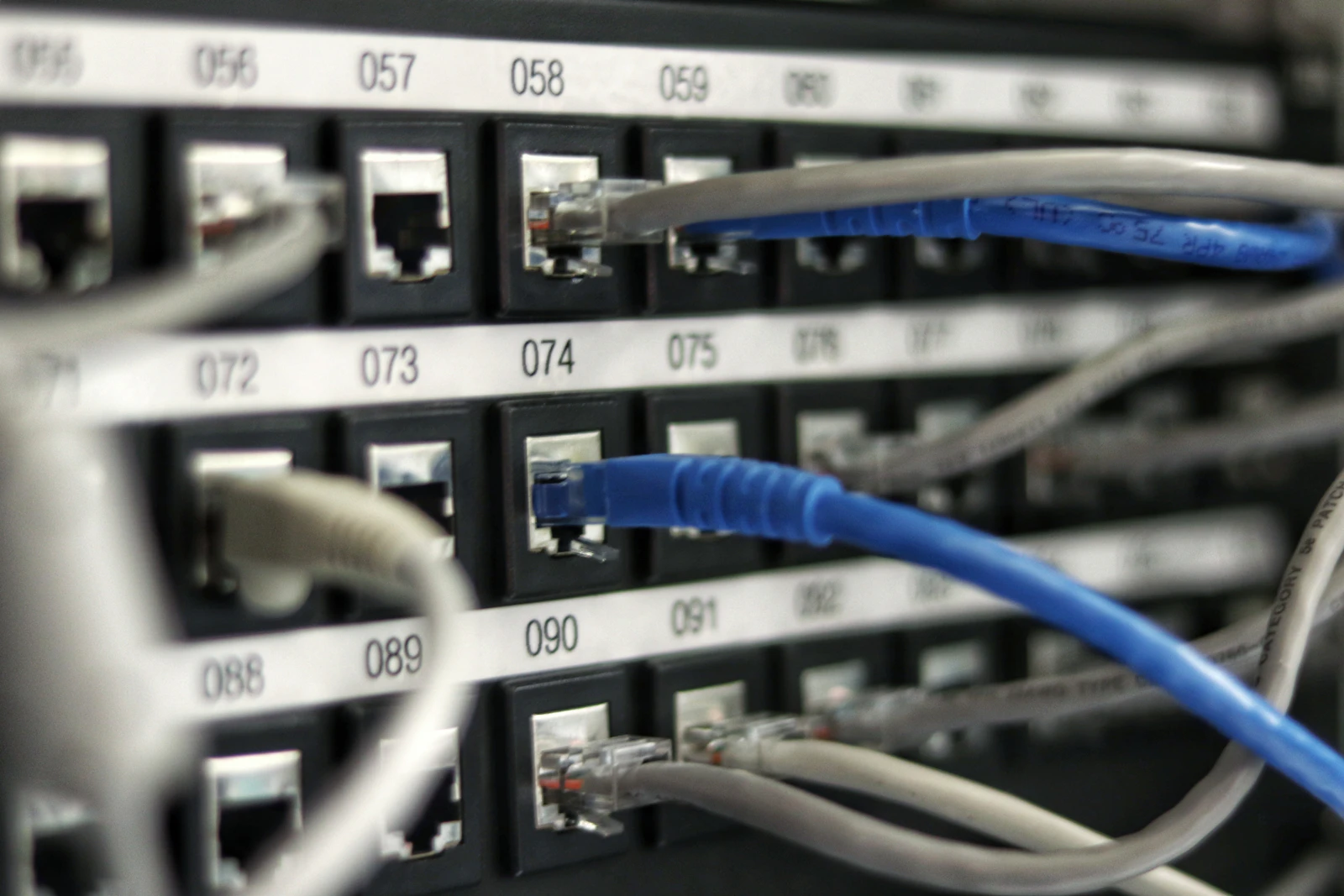
A note on that wired step, because people skip it: plugging in is not admitting defeat. It is the single most informative test in this whole guide, and it permanently improves the devices that matter most for steady speed. A television that streams over a cable will never buffer because someone microwaved lunch, and your WiFi will feel faster for everything else simply because the television left it.
Placement, Channels and Firmware: The Three Fixes That Matter Most
If the steps above helped but did not finish the job, these three deserve a closer look, because together they account for most stubborn cases of slow WiFi. Placement decides how much signal your home starts with. Channels decide how much of it you keep in a crowded neighbourhood. Firmware decides whether the router is even running the software its maker intended.
Placement: Give the Signal a Fair Start
Think of WiFi as light from a lamp. You would not read by a lamp shut inside a wardrobe, and your router works the same way. Central beats corner, high beats low, and open beats hidden, every time. If your internet line enters at an awkward spot, a longer Ethernet cable to a better position is one of the cheapest upgrades in all of home technology. While you experiment, remember that antennas broadcast sideways more than upwards, so a mix of vertical and slightly angled antennas often serves two floors better than all-vertical.
Channels: Stop Sharing With the Whole Street
Free analyser apps can show you which channels your neighbours use, and the picture in a block of flats is often startling: everyone on the same channel their router chose years ago. Moving yours to the quietest channel is like changing to an empty lane. The Cybersecurity and Infrastructure Security Agency makes a related point in its home network guidance: the same router settings screens you use for channels and firmware are where you also set strong encryption and a proper admin password, so one careful session in the settings can improve both speed and safety together. That is also the moment to enable the strongest sign-in protection your accounts and router support — a topic we cover fully in our explanation of two factor authentication.

Firmware: The Update Nobody Sees
Firmware is the router’s own operating system, and out-of-date firmware is a quiet cause of both slowness and insecurity. Some routers update themselves overnight if you enable automatic updates — do enable them. Others need a manual check every few months. Set a reminder, because this is exactly the kind of maintenance that prevents the mysterious slowdown that appears from nowhere a year from now. And while you are in the settings, confirm your network uses WPA2 or WPA3 encryption; an old, weak security mode can force modern devices to slow down, which means fixing your security can literally fix your speed.
When to Call Your ISP — and When to Replace the Router
Sometimes the honest answer is that the problem is not yours to fix. Call your provider when the wired speed test stays well below what you pay for after a proper restart, when the connection drops at the same times each day, or when the router’s internet light shows a fault. Go to that call prepared: your wired test results, the times it happens, and what the lights do. Prepared callers get engineers; unprepared callers get told to restart the router they have already restarted three times.
Replace the router when it is more than about five years old, when it lacks the 5 GHz band entirely, when firmware updates have stopped arriving, or when it cannot cover your home even from the best position. A modern router or a small mesh system is not an extravagance for a home that works, learns and relaxes online — it is the foundation everything else stands on. Just remember to set the new one up safely from minute one, with a unique admin password and automatic updates on.
Slow in One Room, Slow at Night: Reading the Pattern
Patterns are clues, and two patterns cover most of the emails we get about slow WiFi. If it is slow in one room only, the problem is geography: distance, walls, or a dead zone behind something solid. Geography answers to placement, a wired access point, or mesh — not to a faster internet package. Upgrading your plan for a dead zone is like buying a louder stereo because the door to the room is shut. Walk the room-by-room test from step 12, fix the map, and the speed follows.
If it is slow at the same times each day — usually the evening — the problem is congestion, either in your home or on your provider’s network. At home, evenings are when backups run, games update and everyone streams at once; the fixes are scheduling, wiring the big devices and using the 5 GHz band. On the provider’s side, whole neighbourhoods slow together after dinner, and only your wired test numbers, recorded over several evenings, will persuade anyone it is real. While you gather them, it is worth ruling out one quiet impostor: a device infected with malware can chew bandwidth day and night, so scan anything behaving oddly with one of the tools from our round-up of the best antivirus software for Windows. And if your testing leaves you wanting a quick reference for other jobs, our tools page collects the utilities we use most.
Slow WiFi Myths and Mistakes
Myth: a signal booster app will speed up your phone. Apps cannot add hardware, move your router or clear a crowded channel. At best they show you information; at worst they show you adverts. The real boosters are position, channel and band.
Mistake: wrapping the router in foil or pointing every antenna at your chair. Foil reflectors mostly create weird dead spots, and antennas pointed like arrows misunderstand how they radiate. Open placement beats clever sculpture.
Myth: more megabits from your provider always means faster WiFi. If your WiFi can only deliver a fraction of your current plan inside the house, a bigger plan changes the number on the bill, not the number in the bedroom. Fix the delivery first, then judge the plan.
Mistake: changing five settings at once. If speed improves — or worsens — you will never know why. One change, one test, one note. It feels slower and finishes sooner, every single time.
Frequently Asked Questions About How to Fix Slow WiFi
Why is my WiFi fast near the router but slow in other rooms?
That is the classic signature of a range problem, not an internet problem. The signal weakens with distance and through walls, floors and appliances. Central, raised, open placement fixes more of these cases than any purchase; for larger or awkward homes, a mesh system or one wired access point in the weak area is the permanent answer.
Will a WiFi extender fix slow WiFi?
Sometimes, with a caveat: a basic extender repeats the signal it receives, and if it sits in a weak spot it repeats a weak signal, often at half speed. Place it halfway between router and dead zone, where its own signal is still strong, or choose a mesh system instead, which manages the whole network as one and usually performs far better.
How often should I restart my router?
There is no magic schedule, but a restart every few weeks — or a weekly automatic one overnight — prevents the slow build-up of small glitches. Restart properly: power off, wait 30 seconds, modem first, then router. If you need daily restarts to stay fast, something deeper is wrong, usually heat, age or failing hardware.
Is 2.4 GHz or 5 GHz better?
Neither, universally — they are tools for different jobs. Use 5 GHz near the router for speed: calls, streaming, gaming. Use 2.4 GHz for range and for smart-home gadgets that need to reach through walls. Most modern routers offer both; matching each device to the right band is one of the simplest genuine speed-ups in this guide.
Can my neighbours really slow down my WiFi?
Yes, indirectly. Their networks do not touch yours, but shared channels in the same airspace mean everyone waits their turn to talk. That is why channel choice matters so much in flats and terraces, and why your speed can dip in the evening when the whole building comes home and goes online at once.
When is slow WiFi my provider’s fault?
When the wired test — cable into the router, everything else quiet — still lands far below the speed you pay for, repeatedly, after a proper restart. At that point you have evidence, not a feeling, and evidence is what gets lines checked and faults fixed. Take your numbers, times and router-light notes to that call.
Conclusion: Measure First, Then Fix
Learning how to fix slow WiFi turns out to be less about secret tricks and more about honest measurement. Separate the internet from the WiFi with one cable and one test. Then work the list in order: restart properly, place the router like you mean it, give devices the right band, choose a quiet channel, update the firmware, and evict the hogs and freeloaders. Most homes recover their speed somewhere in that list, without spending anything.
And when the numbers say the fault is not in your home at all, you will know exactly how to prove it to your provider — or know it is time for a modern router. Either way, you end up in charge of your connection, which is where this series always wants you. Keep it safe as well as fast by revisiting how to protect your online privacy, and enjoy the rarest feeling in home technology: WiFi you no longer have to think about.
One Comment